Screen
Your screen is an input. Press the Vision hotkey, dim the display, drag a region (or capture a full window or monitor), and the image becomes raw material for an AI that can describe it, extract its text, analyze its structure, or append it to a note.
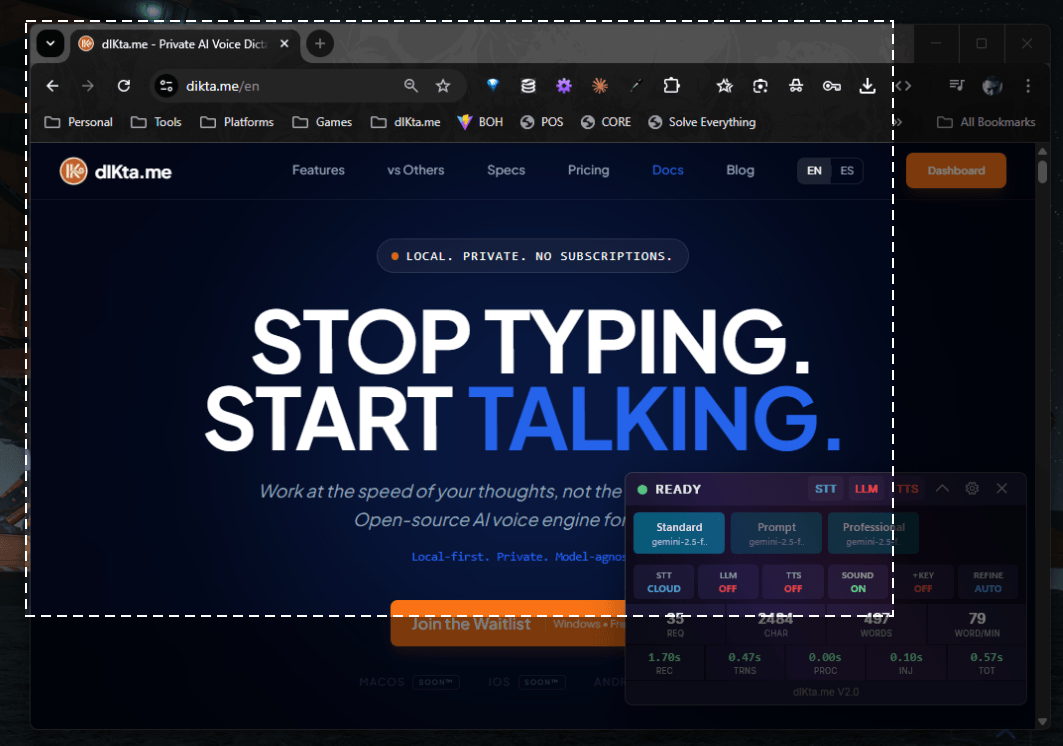
Vision pairs naturally with voice. After capturing, you can record a spoken question (*"What does this error mean?"*, *"Summarize the data in this table"*) before the AI processes the image.
How to capture the screen
Press the Vision hotkey from any app:
Ctrl+Alt+S (default, rebindable in Settings → Hotkeys)
The screen dims and a transparent snipping overlay appears with a hint bar:

| Gesture | What it captures |
|---|---|
| Click on a window | That specific application window |
| Click and drag | A custom rectangular region |
| Shift + drag | A freeform shape |
Press F | The full active monitor |
Press A | All monitors as one wide image |
Press Esc | Cancels and returns to your work |
After the selection the overlay closes and the Vision Action panel opens.
The Vision Action panel
The action panel lets you (optionally) type or record a question, then pick what the AI should do with the screenshot:

Vision source and capture-mode pickers


Outputs that consume the screen
| Action | What it does | Destination |
|---|---|---|
| OCR | Extracts every character from the screenshot | Clipboard / cursor |
| Describe (Clip / Chat) | AI describes what it sees in natural language | Toast / Quick Chat |
| Save | Writes the screenshot to disk | Configured save folder |
| Note | Appends the image + your spoken description to your notes file | Note |
| Chat | Attaches the image to a Quick Chat conversation | Quick Chat |
Color picker and video capture
The Vision hotkey family also includes two specialized tools:
- Color Picker — a pixel magnifier cursor that samples colors from your screen, with a swatches tray and keyboard shortcuts.
- Video Recording Bar — a small floating timer/bar for capturing short screen recordings.

Color picker in detail
Single-pixel magnifier tooltips show the hex and RGB values live as you move:
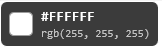
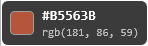
Swatches accumulate as you click:

Local vs. cloud vision
Vision runs on a multimodal AI model:
- Cloud — Gemini Flash (wallet or BYOK), OpenAI GPT-4o with BYOK
- Local — Ollama with
minicpm-vormoondream(OCR only fully supported onminicpm-v)
Configure in Settings → AI Engine → Vision.
Local Vision models are smaller and quantized — OCR accuracy and long-context analysis are noticeably stronger on the cloud path.