Control Panel settings
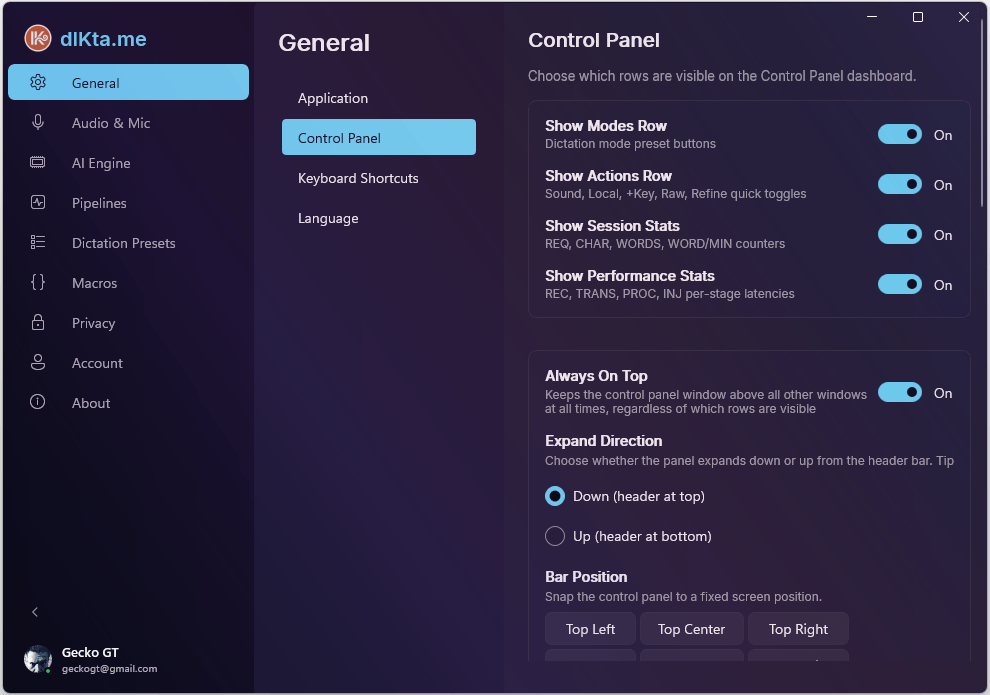
The Control Panel tab customizes the appearance, metrics, and functionality of the dIKta.me floating overlay.
HUD states at a glance
The floating Control Panel changes its visual state based on what's happening:
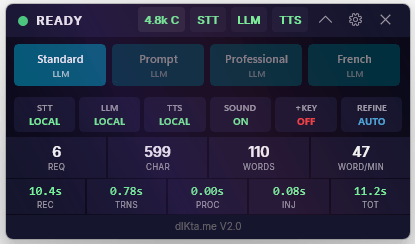
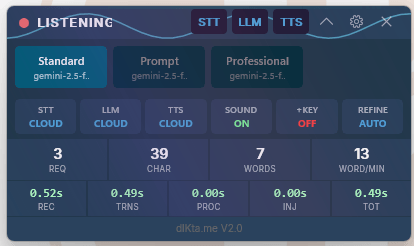
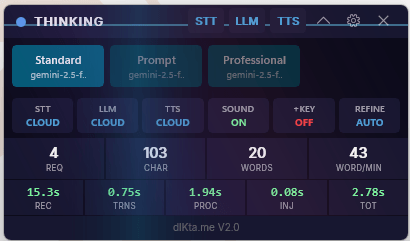

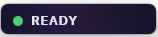
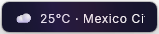
Idle Roller layers (status, clock + logo, weather)
When the HUD is collapsed and idle, it cycles through three layers:

All Control Panel sub-sections in detail
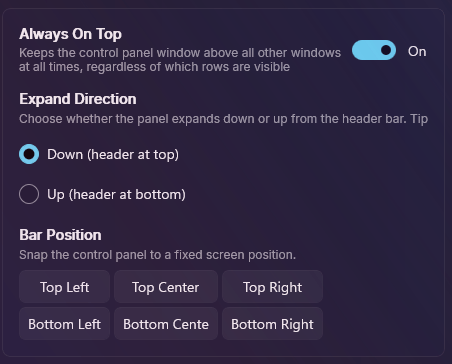
Position — Always On Top, Expand Direction, 6-position snap grid:
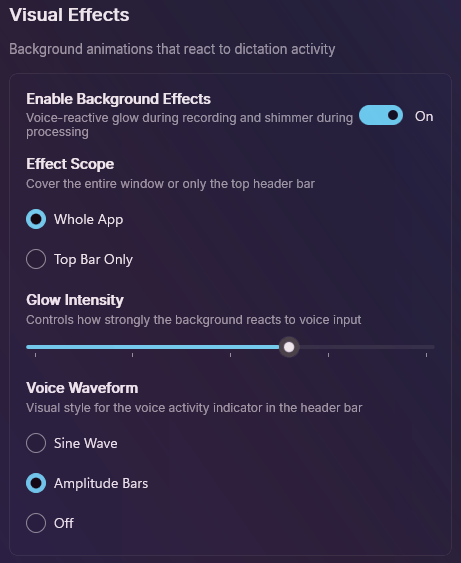
Visual Effects — Background Effects, Effect Scope, Glow Intensity, Voice Waveform:
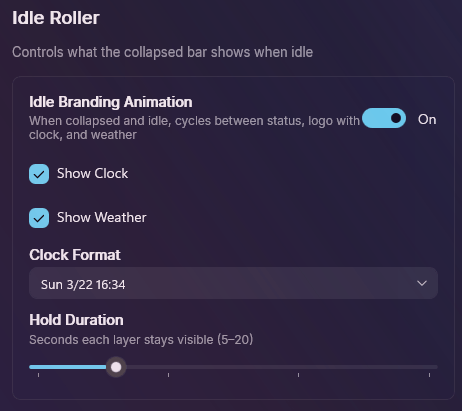
Idle Roller — Idle Branding Animation, Show Clock, Show Weather, Clock Format, Hold Duration:
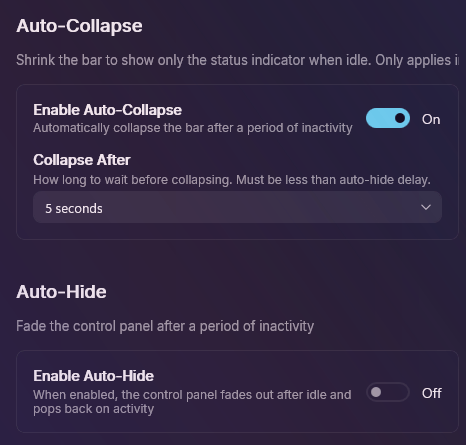
Auto-Collapse + Auto-Hide:
Interface Visibility
Toggle the visible rows of the main Control Panel interface:
- Show Actions: Displays the Quick Links row (e.g., Settings gear, Models, Quick Chat shortcut).
- Show Engine Selection: Displays the provider dropdowns, allowing you to instantly swap your active STT engine or LLM model.
- Show Presets List: Displays the active Dictation Mode dropdown, enabling fast switching between profiles (e.g., standard vs programming syntax).
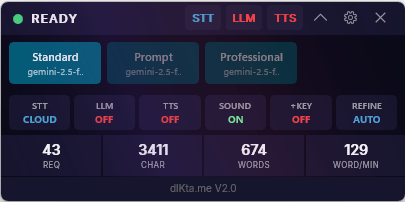
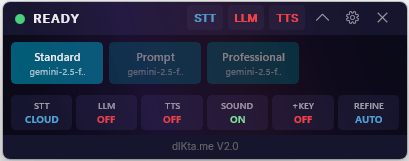
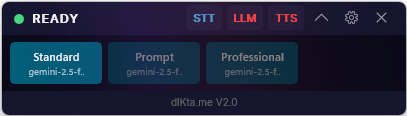
Appearance & Behavior
- Themes & Glassmorphism: dIKta.me features a fully theme-aware, glassmorphic UI. You can seamlessly switch between premium aesthetic palettes (such as Midnight, Ember, or Frost) to ensure the settings and Control Panel match your personal desktop vibe.
Drag the sliders below to see the Control Panel in each theme:
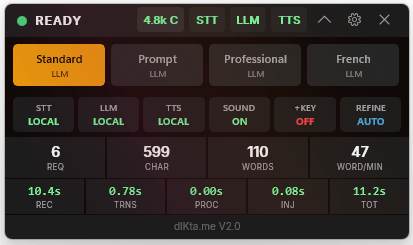
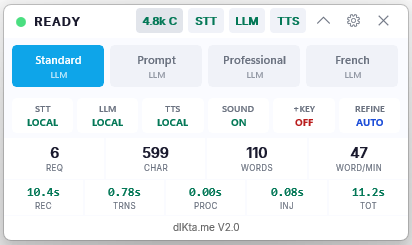
- Snap-to-Position: Drag the Control Panel toward any edge or corner of your screen. It will snap to one of 6 fixed positions (top-left, top-center, top-right, bottom-left, bottom-center, bottom-right). Your chosen position is saved and restored automatically the next time you launch the app.
- Auto-Collapse Bar: Enable this to minimize screen clutter. When you aren't actively dictating, the Control Panel will smoothly collapse into a minimal state, expanding automatically only when you interact with it.
- Idle Branding Animation: When the Control Panel is collapsed and idle, this feature rolls the status indicator like a mechanical cylinder, cycling seamlessly between your current dictation status, a branded clock, and the local weather.
- Voice Waveform & VU Meter: While recording, the Control Panel displays a dynamic voice waveform. This real-time visual VU meter provides immediate confidence that your microphone is actively capturing your voice.
Metrics
Toggle the display of useful, real-time background information directly on the HUD after a pipeline completes:
- Show Session Total Tokens: Displays exactly how many AI tokens you have accumulated within the current computing session. Helpful for managing costs or usage limits.
- Show Diagnostics: Enables advanced performance markers showing exactly how many milliseconds the Speech-to-Text engine, LLM engine, and Text Injector took to process your last dictation.
Background Behavior
- Dark Mode: Overrides your system's default Windows theme to natively display the Control Panel, Settings menus, and Quick Chat overlay with a sleek, low-glare aesthetic.
- Startup Minimized: Controls whether the Control Panel should appear vividly upon booting up Windows, or completely hide itself inside your System Tray while awaiting a hotkey.