AI Engine Settings
The AI Engine tab is the brain of your dIKta.me experience. It controls which Speech-to-Text (STT), Language Model (LLM), and Text-to-Speech (TTS) engines handle each pipeline. The tab has a master‑detail layout — select a category on the left, configure it on the right.
**Cloud vs. Local**: you can switch the active environment directly from the Control Panel overlay without opening settings. Every sub-section below has independent Cloud and Local configurations so you can mix — for example, cloud STT + local LLM.
API Keys
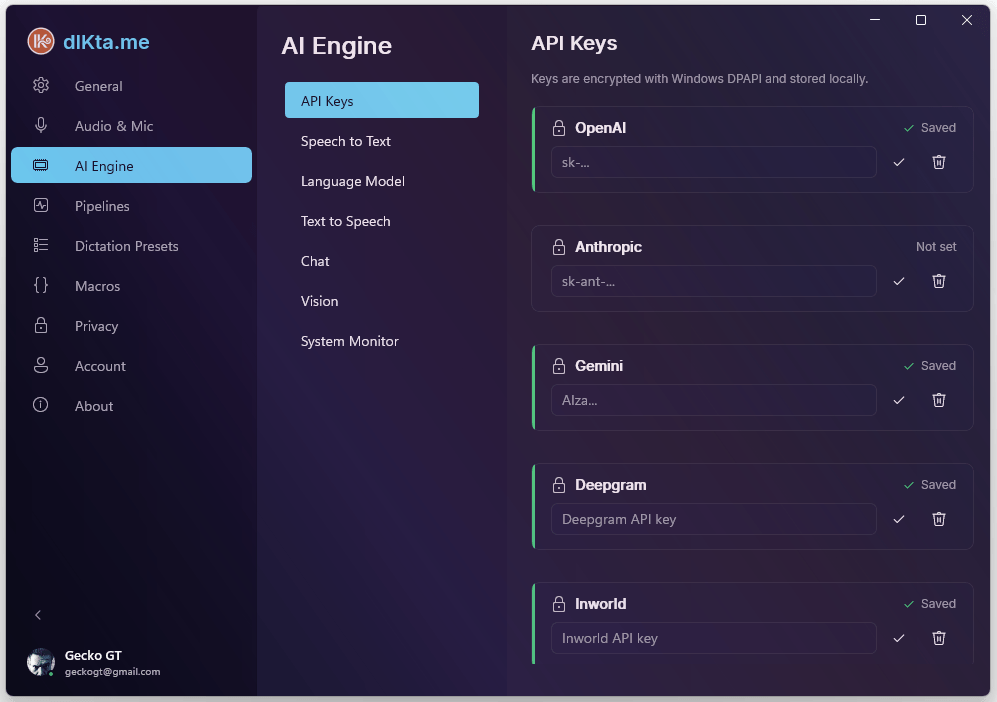
The API Keys section is a single encrypted vault for every cloud provider. Keys are stored with Windows DPAPI on save, so they're tied to your user account and machine. Use this when you're on the BYOK path (bring your own key) and want Gemini, Anthropic, OpenAI, Deepgram, Inworld, or OpenRouter to answer directly rather than going through the wallet.
Screenshot: API Keys vault
Speech to Text (STT)
This section picks which engine turns your voice into text. Each route — Cloud and Local — has its own selection so switching environments is a single toggle.
Cloud STT
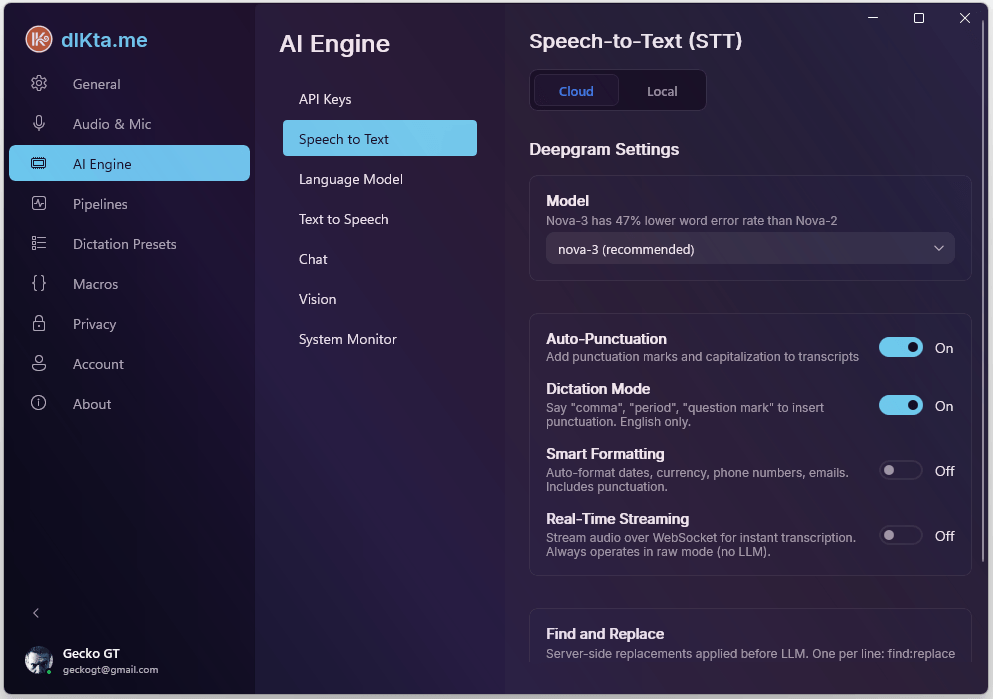
Deepgram is the primary cloud STT provider. It supports both batch (send the whole clip) and streaming (send chunks over a WebSocket as you talk). Streaming is what makes dictation feel instantaneous, but it bypasses LLM formatting by design — streamed words are injected raw.
Local STT
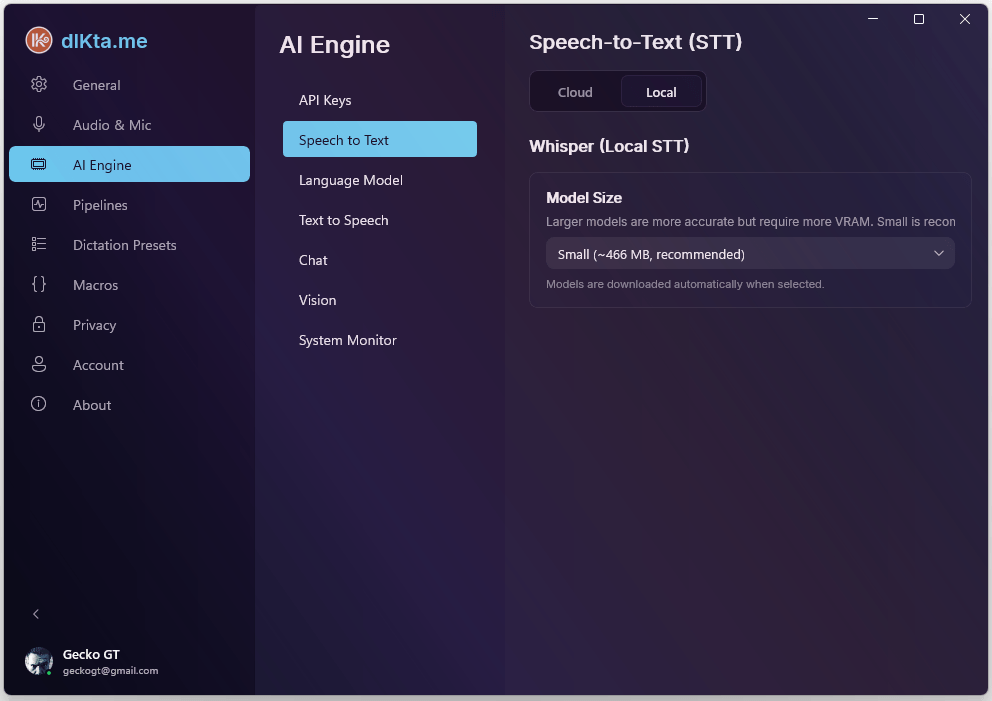
Whisper runs entirely on your device. The first time you select a model size, dIKta.me downloads the corresponding ONNX file; after that, there's no network activity at all. Larger models are more accurate but require more VRAM — the picker recommends Small (~466 MB) as the default balance.
Language Model (LLM)
This section controls the model that cleans up, formats, rewrites, answers, and translates your text. It's the step that turns "raw transcript" into "finished writing."
Cloud LLM
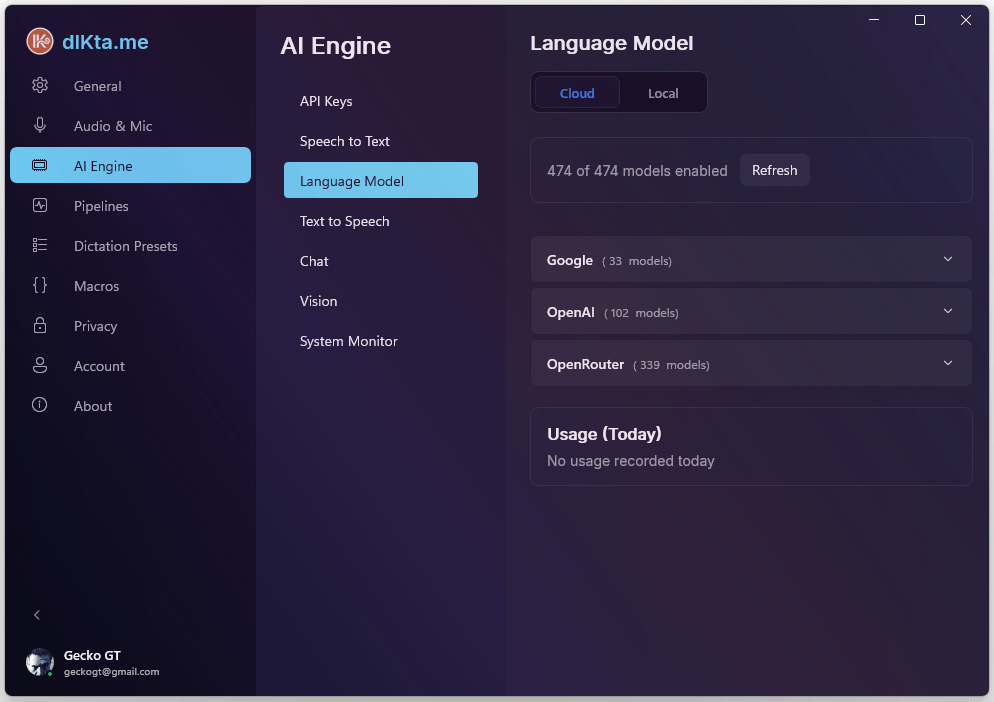
Pick a provider (Gemini / Anthropic / OpenAI / OpenRouter / Requesty) and a model within it. Gemini 2.5 Flash is the default for Wallet users because of its speed-per-credit ratio. With BYOK you can pick any model the provider exposes.
Local LLM (Ollama)
Ollama is the local LLM engine. dIKta.me talks to Ollama on http://localhost:11434 by default; if you run Ollama on a different machine on your LAN, point the Host URL at that IP. Click Test Connection to verify.
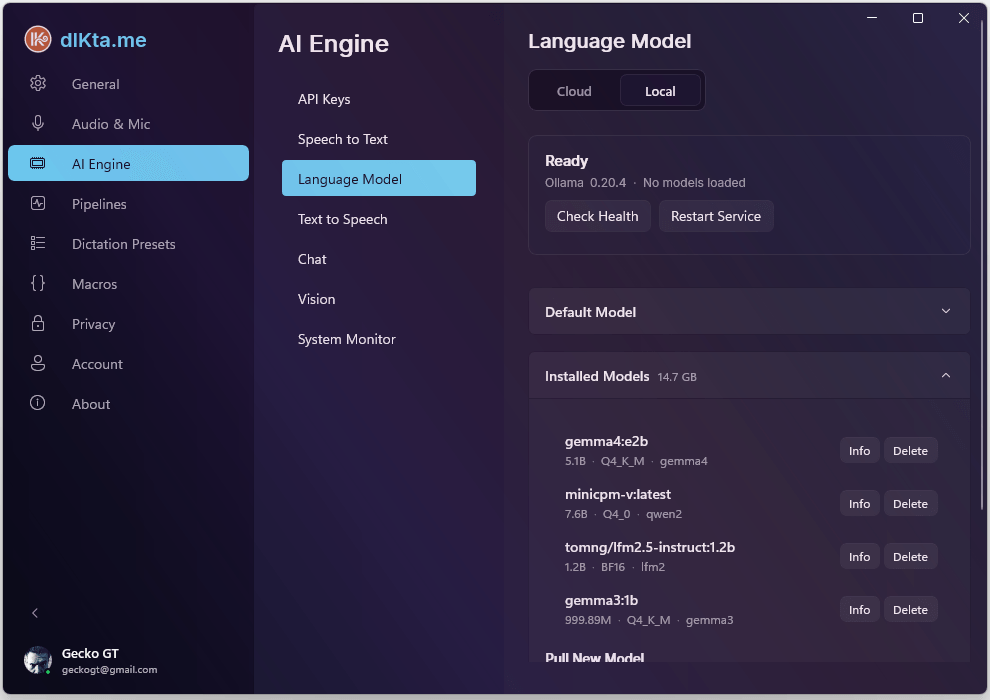
The Model Library lets you search and install any Ollama-compatible model (Gemma, Llama, Mistral, Phi, Qwen, etc.) without ever opening a terminal. The Advanced panel exposes the context window (num_ctx) and an auto-warmup toggle that keeps your default model hot in memory for faster first-dictation latency.
Screenshot: Ollama Model Library + Advanced panel
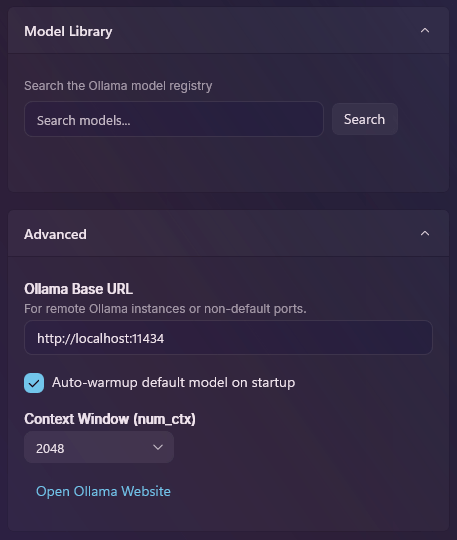
Installed Ollama models appear everywhere the Local LLM picker shows up — Dictation Presets, Utility Pipelines, and Chat all pull from the same list. Delete a model here and it disappears from those pickers immediately.
Text to Speech (TTS)
TTS is an optional output channel. When enabled, dIKta.me can read Ask answers aloud, voice Quick Chat replies, pronounce Translate results, or read any highlighted text on demand (Ctrl+Alt+F). It never delays text injection — speech plays in parallel.
Cloud TTS
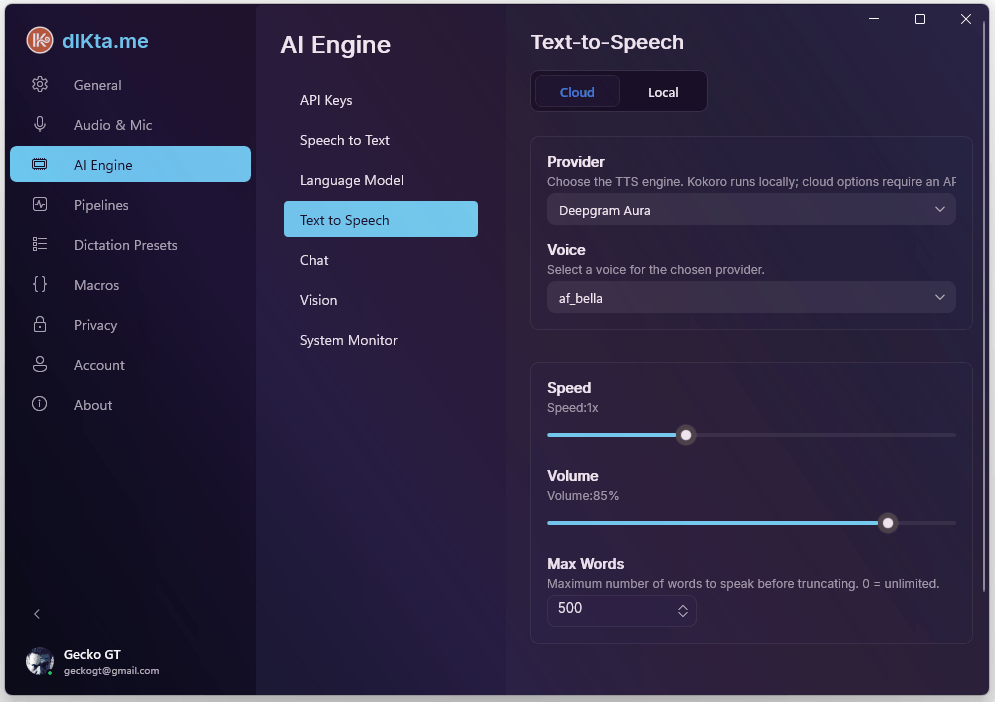
Four cloud providers are supported. Most people pick whichever one matches a key they already have:
- Deepgram Aura-2 — recycles your Deepgram STT key.
- Gemini TTS — recycles your Gemini LLM key. Ultra-realistic voices.
- OpenAI TTS — recycles your OpenAI key.
- Inworld TTS-1.5 — premium quality, low latency; needs its own key.
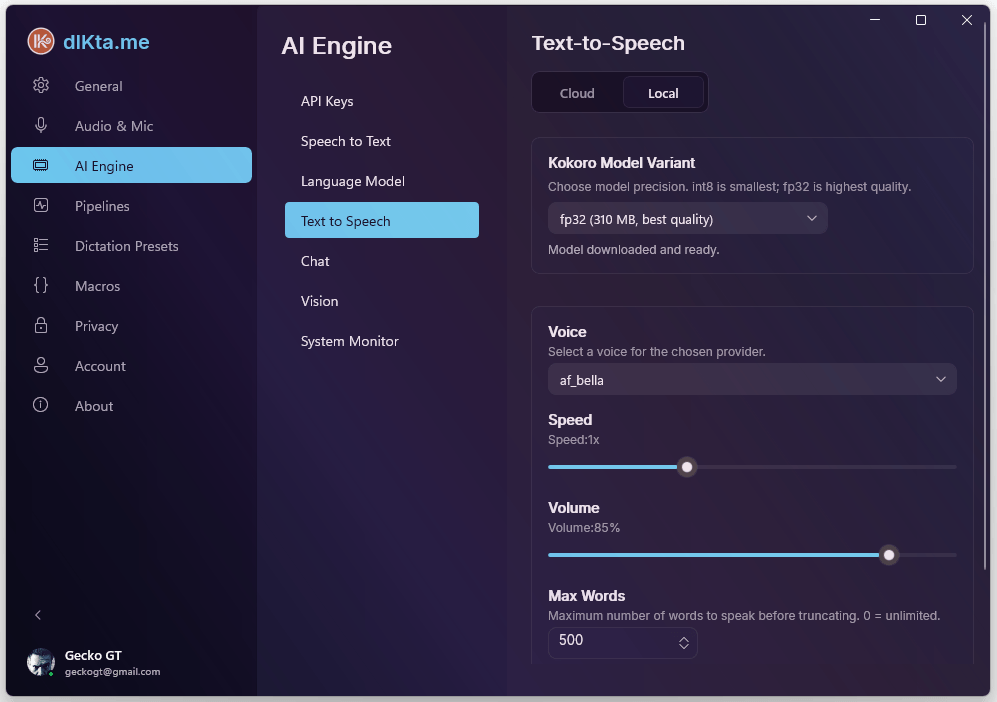
Local TTS (Kokoro)
Kokoro is an ONNX-based voice synth that runs on your CPU. The model is ~88 MB and downloads on first use; after that, no network required. Voice quality is surprisingly good for the size.
TTS is **off by default**. Turn it on only if you want spoken output — enabling it never forces audio; each feature (Ask, Chat, Translate, Read Selection, Notifications) has its own toggle under **Pipelines → Speak (TTS)**.
Chat
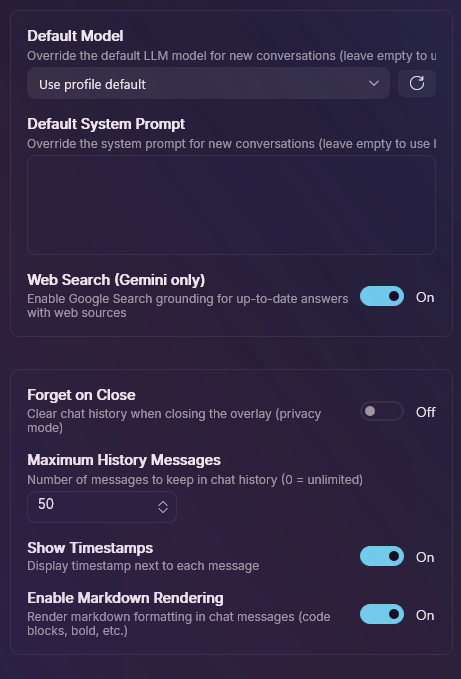
This controls the Quick Chat overlay's underlying model and system prompt defaults. The model here is used for every Quick Chat conversation unless you override it per-session.
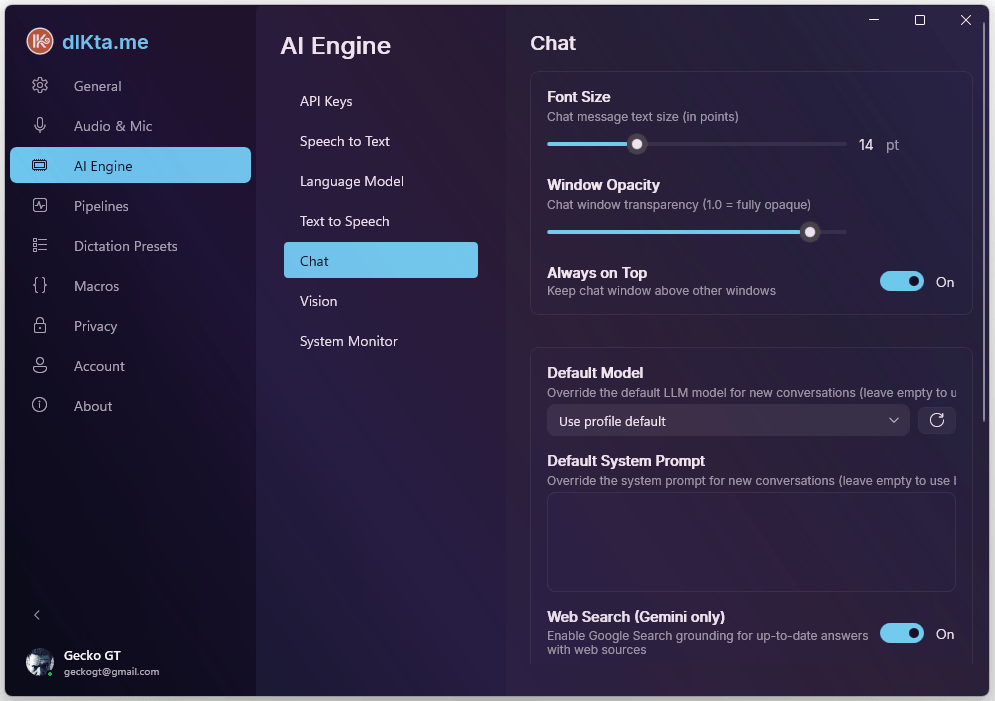
The model detail view shows every option the selected provider exposes (e.g., Gemini Pro Latest vs. Flash Latest), plus per-conversation token and history caps.
Vision
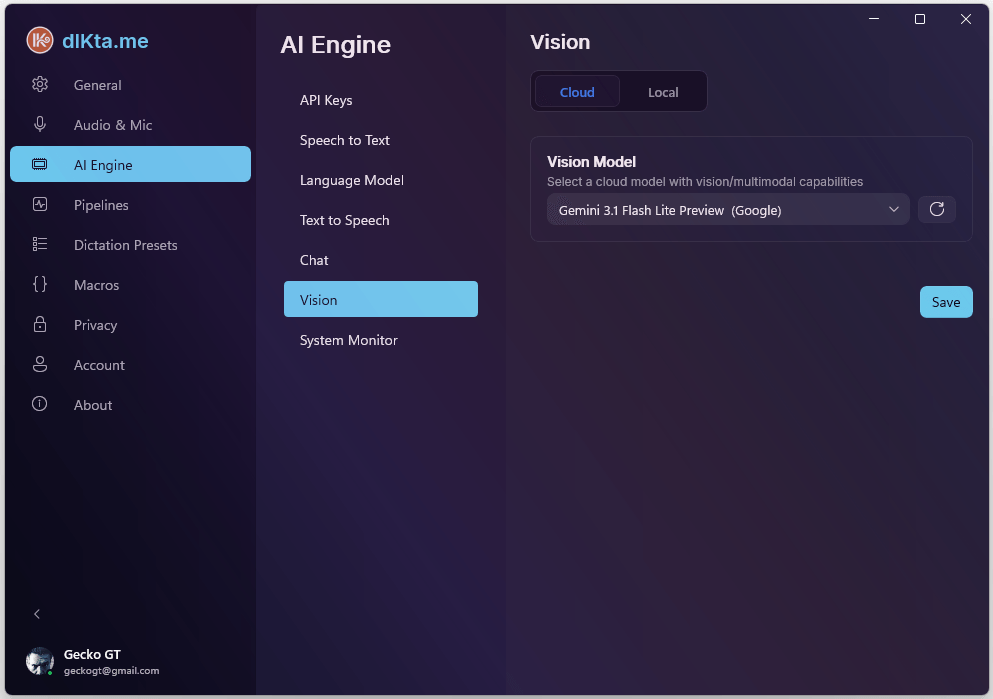
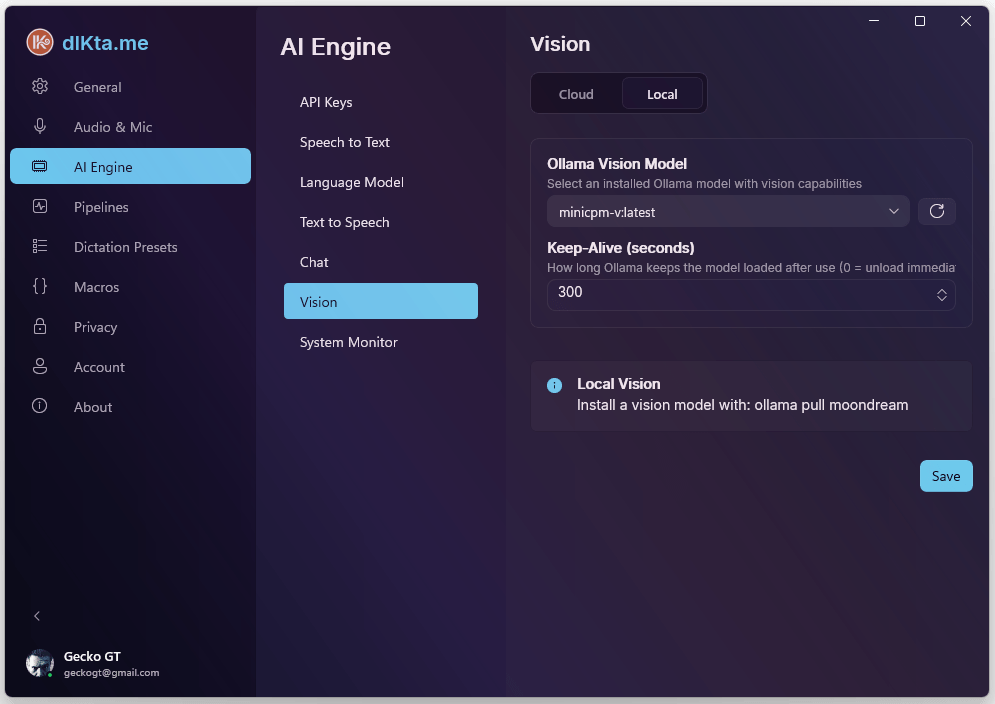
Vision has its own model selection because multimodal models aren't universally available across providers. Cloud routes to Gemini Flash or GPT-4o; Local routes to an Ollama vision model like minicpm-v or moondream.
Cloud Vision
Local Vision
minicpm-v supports OCR, description, and Q&A. moondream is lighter but OCR-limited — use it only for quick descriptions.
System Monitor
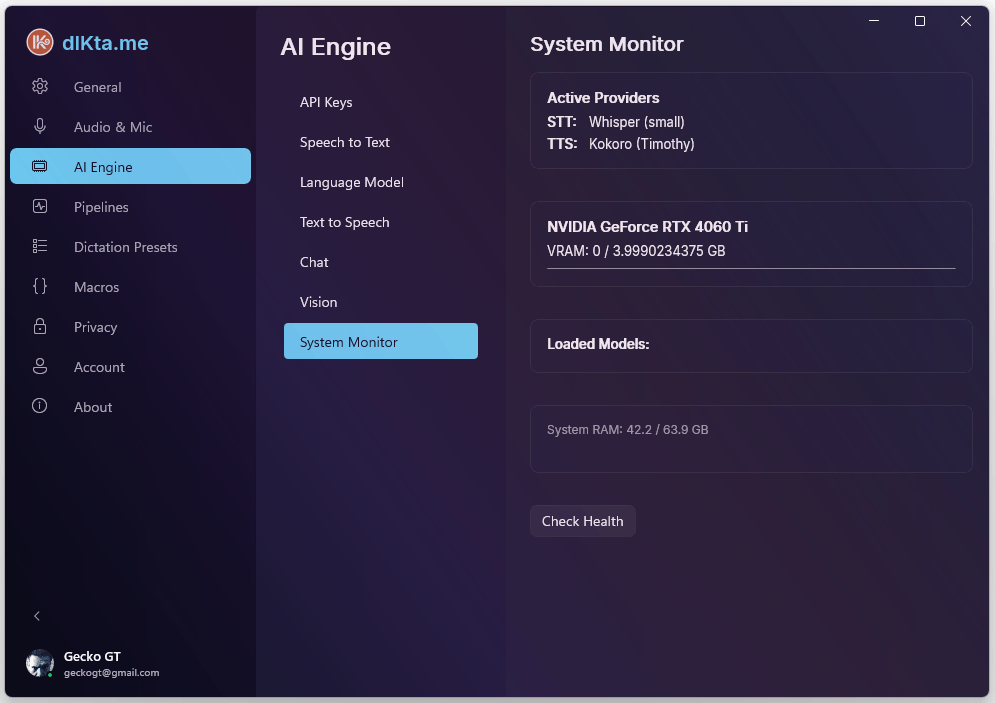
The last sub-tab is a live readout: Ollama daemon health, current GPU status, VRAM usage, model cache size, and a warmup button. It's useful when you're troubleshooting local-mode latency or deciding whether you have headroom to run a bigger model.
Related
- Dictation Presets — per-preset model overrides that draw from the same provider list
- Pipelines — per-pipeline (Ask / Refine / Translate / Note / Vision / Speak) model overrides