Voice
Voice is dIKta.me's primary input. Press a hotkey, speak, and the app captures your audio, transcribes it with a Speech-to-Text engine, and (optionally) processes it through an AI model before sending the result somewhere useful.
Voice pairs with almost every output. The same spoken sentence can become dictated text, a refined rewrite, an answered question, a translation, a saved note, or a voice-note appended to an image — depending on which hotkey you press.
How to capture voice
Every voice-driven action uses a global hotkey you can press from any app, at any time. Your cursor stays where it is; the app works in the background.
| Hotkey | Action | Output page |
|---|---|---|
Ctrl+Alt+D | Dictate — voice → formatted text at cursor | Dictate |
Ctrl+Alt+A | Ask — voice question → AI answer in a toast | Ask |
Ctrl+Alt+T | Translate — voice in one language → text in another | Translate |
Ctrl+Alt+N | Note — voice → appended line in your notes file | Note |
Ctrl+Alt+Q | Quick Chat — voice turn in an ongoing conversation | Quick Chat |
All hotkeys are rebindable in Settings → Keyboard Shortcuts.
The Control Panel during voice input
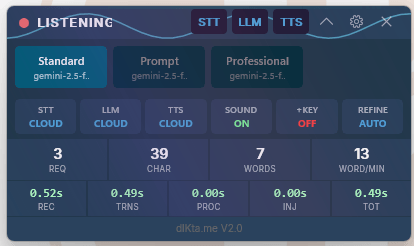
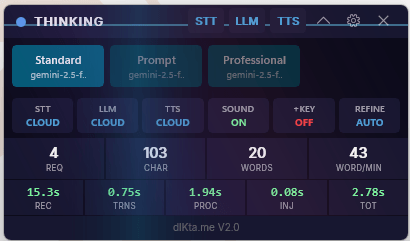
When you trigger a voice action, the floating Control Panel updates in real time:
See all Control Panel states
- Ready — idle, waiting for a hotkey
- Listening — currently recording audio
- Thinking — transcription and AI processing in progress
- Collapsed / Idle Roller — after a period of inactivity the bar shrinks and cycles through status, logo + clock, and weather

Streaming vs. batch
By default, voice runs in batch mode: dIKta.me records until you stop, then sends the whole clip to the STT provider. This is what enables LLM post-processing (Refine, Ask, Translate).
Streaming mode (Deepgram only) sends audio in real time and injects words as you speak. It's faster, but it bypasses LLM formatting — what you say is what lands. Toggle streaming in Settings → AI Engine → Speech-to-Text.
Local vs. cloud voice
Voice input works fully offline if you choose local providers:
- Cloud STT — Deepgram (wallet credits or BYOK)
- Local STT — Whisper running on your machine (no data leaves your computer)
Switch between them per dictation preset in Settings → Dictation Presets, or globally in Settings → AI Engine.