Getting Started
Welcome! Let's get you set up with dIKta.me. No coding or complex installations required.
1. Installation
- Download: Grab the latest
DiktaMe_Setup.exefrom the Releases page. - Run: Double-click the installer.
First-time Windows SmartScreen warning: click "More info" → "Run anyway" to proceed.
- Done: dIKta.me launches and settles into your system tray.
2. First Run Wizard
The first time you open dIKta.me, a short setup wizard walks you through configuration.
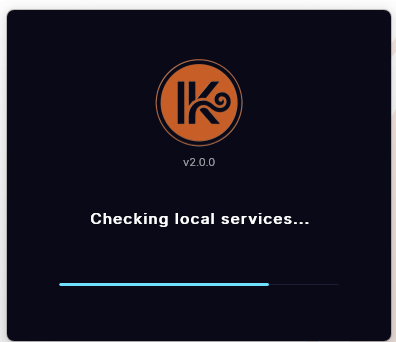
Loading
A splash screen runs a quick check of local services while the wizard prepares.
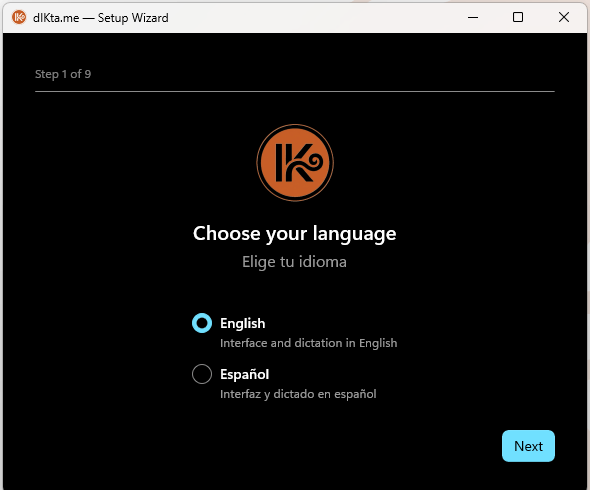
Step 1 — Language
Choose English or Spanish for the app interface.
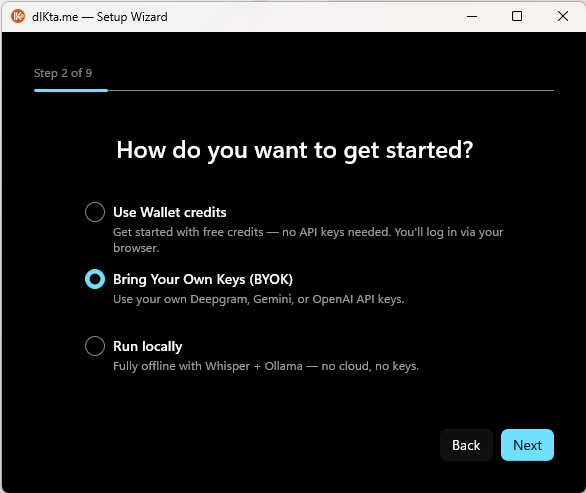
Step 2 — Choose your mode
| Mode | What it does | Requires |
|---|---|---|
| Wallet | Cloud dictation powered by dIKta.me credits. Just sign in — no API keys needed. | Free account |
| API Key (BYOK) | Use your own Deepgram, Gemini, Anthropic, and/or OpenAI keys. Requests go directly to each provider. | Power License |
| Local | Fully offline with Whisper + Ollama + Kokoro on your machine. | Power License |
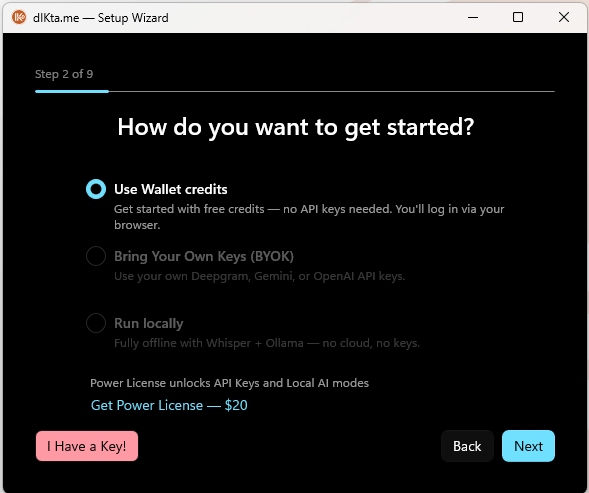
Wallet is the fastest way to start. The wizard will open a browser tab for sign-in, then you're done.
BYOK and Local require a Power License. If you don't have one yet, click "I Have a Key!" to jump to the activation screen, or continue with Wallet.
Already have a Power License? See the unlocked mode selector
Once a valid Power License is activated, all three options become available:
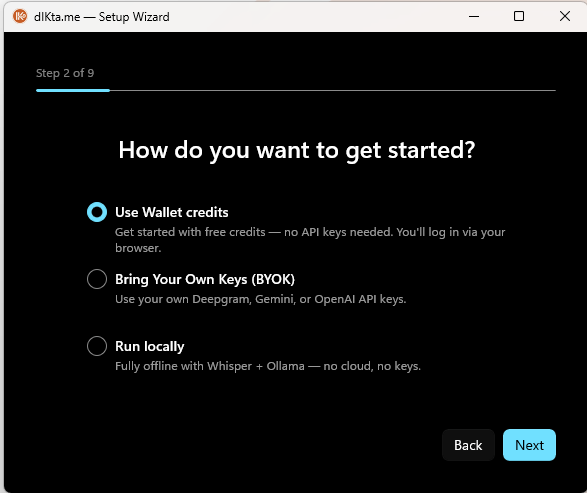
Pick BYOK to bring your own API keys:
Step 3 — Features preview (Wallet path)
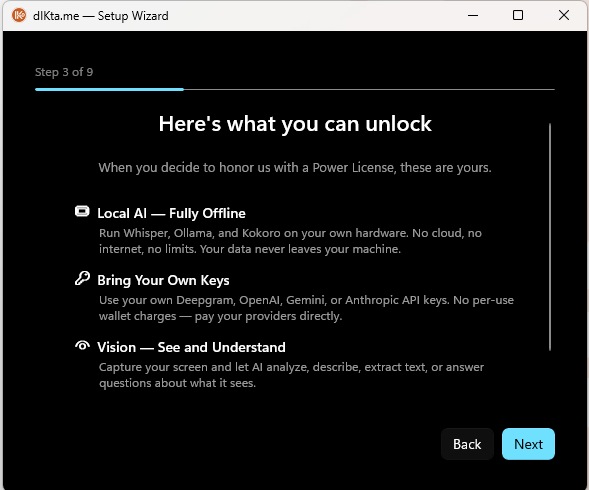
If you chose Wallet, the wizard previews what a Power License would unlock — Local AI, BYOK, and Vision:
Activation detour (optional)
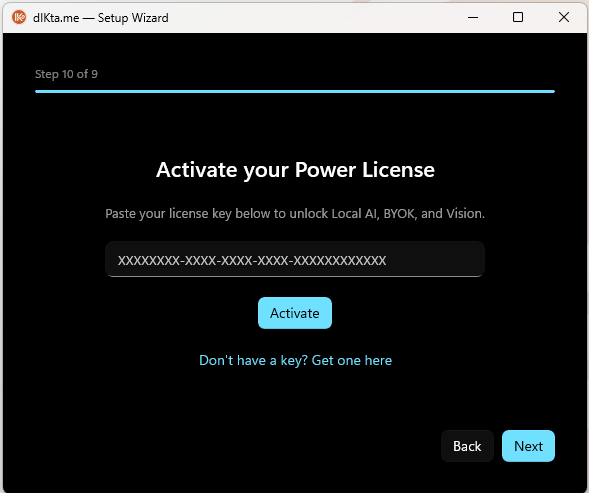
Clicking "I Have a Key!" at any point opens the license activation screen. Paste your key and continue.
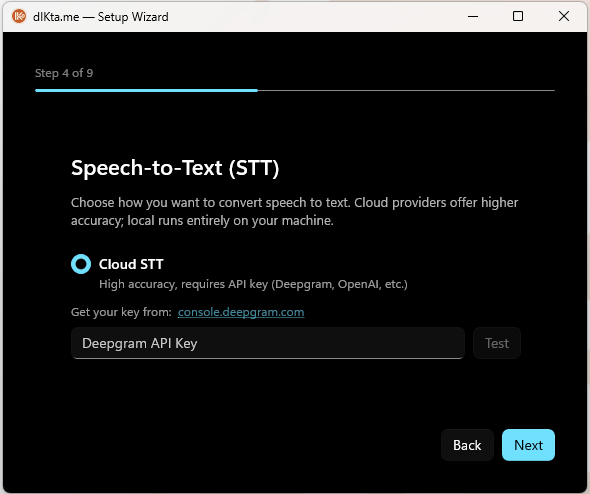
Step 4 — Speech-to-Text
Pick a cloud provider (Deepgram) or a local engine (Whisper). For cloud, enter your API key inline and test it.
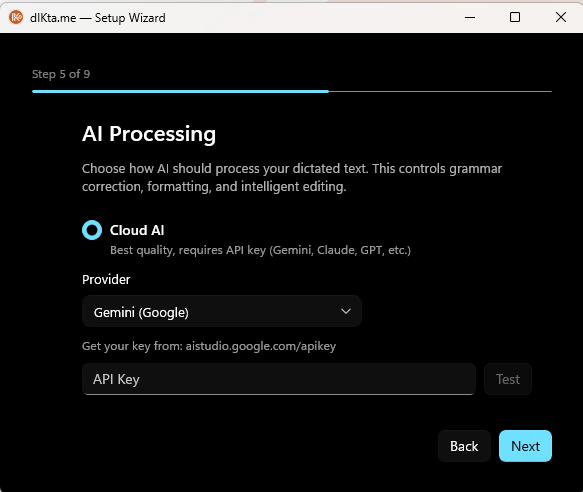
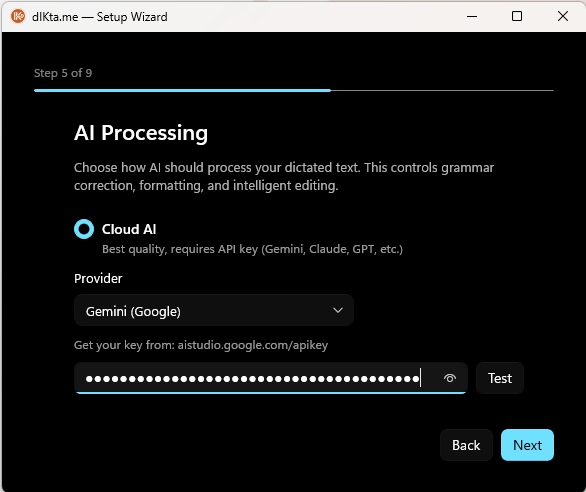
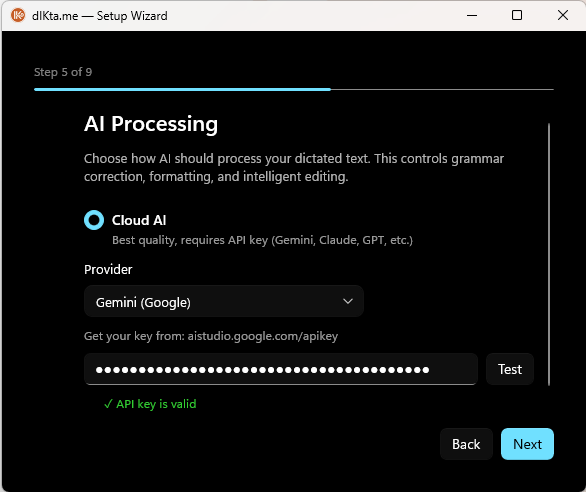
Step 5 — AI Processing (LLM)
Choose a cloud LLM (Gemini, Claude, GPT, OpenRouter) or local (Ollama). Test your key before moving on.
See the LLM step progress as you test the key
Empty state:
Key pasted:
Validated (green check):
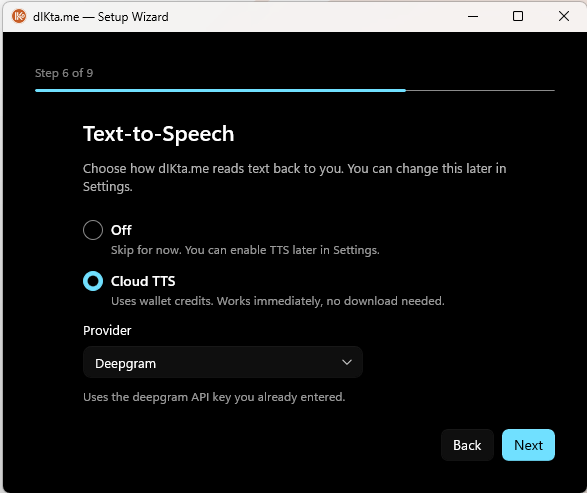
Step 6 — Text-to-Speech
Optional. Off, Cloud (Deepgram, OpenAI, Gemini, Inworld), or Local (Kokoro).
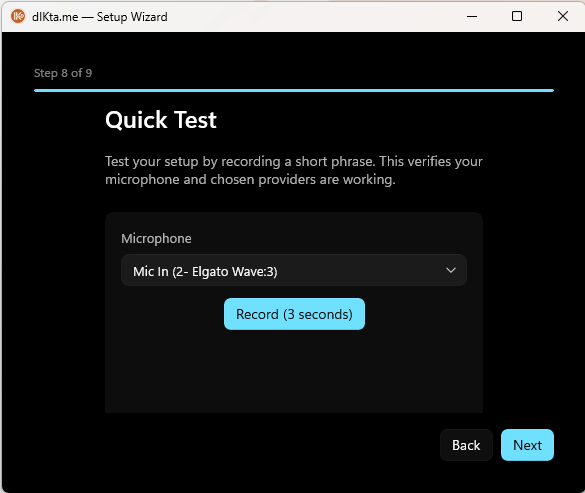
Step 8 — Quick Test
Record a short phrase to confirm your microphone and providers work end-to-end.
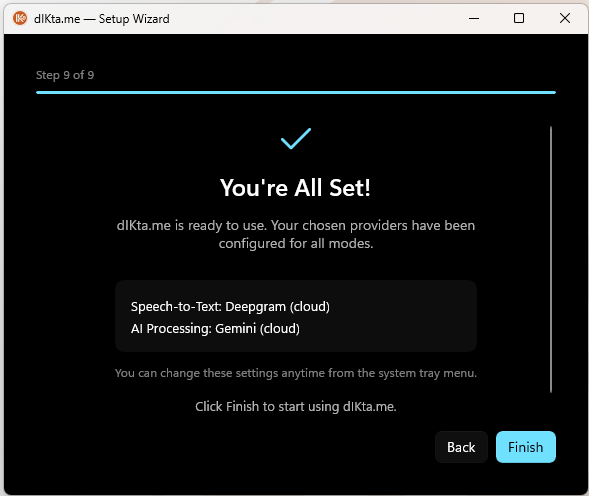
Step 9 — You're All Set
A summary of your chosen providers. Click Finish to exit the wizard and start dictating.
3. How to Use It
dIKta.me lives quietly in your system tray.
- To Dictate: Click anywhere you can type and press
Ctrl+Alt+D. Hold it down while you talk, then let go — dIKta.me types what you said. - To Tweak: Right-click the tray icon or click the gear icon in the Control Panel to open Settings.
- To Switch Modes: Click the Cloud/Local toggle in the Control Panel HUD.
Next up: Voice walks through every voice-driven action in depth.